Posted by Chris Ellison - Last Updated: Aug 2, 2026 | Contact Author
How to Rip & Upload DVDs to Cloud (Google Drive, iCloud, OneDrive)
Summary: To port your DVD library in the cloud storage like Google Drive, OneDrive, Dropbox, iCloud, pCloud, IDrive, first you need to "rip" the discs to MP4, MOV, MKV or other digital files, then upload the ripped file to a cloud service. This guide shows you how to easily rip and put your DVD movie library to cloud for later smooth streaming and playback on your TV, mobile, Plex, Roku, etc. devices.
If you still reply on physical DVDs to watch your favorite movies, it's time to make a smarter move. Uploading DVDs to cloud opens up a world of possibilities, allowing you to stream and play your favorite movies through Internet on your TV, Plex, Roku, etc. without being tethered to a DVD player. By saving DVD library to cloud, you can also protect your collection from scratches or aging, save physical storage space, and create permanent backups that are easily accessible anytime.
However, you cannot directly upload a DVD to cloud storage deivces like Google Drive, iCloud, Dropbox, or OneDrive. Even uploaded successfully, the raw DVD data may fill up the space quickly and the files may not open smoothly across phones, tablets, smart TVs, or web browsers. The proper solution is to convert the DVD to digital formats like MP4 to reduce file size and improve compatibility with modern devices and cloud media players.
In this guide, we will walk through practical workflows about porting DVD library to cloud, including a reliable DVD ripping tool for handling both homemade and commercial discs, the best movie format for cloud storage, and how to store the ripped movies to cloud. Once done, you can stream your movie collection more easily, back up old discs safely, and access your videos anywhere without carrying physical DVDs around.
Table of Contents
What's the Best Format for Ripping DVD to Cloud
Before we start digitizing DVD library for cloud, let's take a look at the supported formats by different cloud storage services. According to the table below, we can simply find that the safest choice for cloud storage is MP4 with the H.264 video and AAC (or MP3) audio. Other formats like MKV, AVI, WebM or HEVC can also be accepted by certain services, but MP4 is widely recommended by most cloud services because it strikes the best balance among the file size, output quality, compatibility, and upload speed.
Cloud storage service |
Supported Video Formats |
Supported Audio Formats |
Google Drive |
WebM, .MPEG4, .3GPP, .MOV, .AVI, .MPEGPS, .WMV, .FLV, .ogg |
MP3, MPEG, WAV, .ogg, .opus |
Dropbox |
.mp4, .mov, .mkv, .mpeg, .mpg, .mts, .avi, .dv, .3gp, .asf, m2ts, .webm, .vob, .wmv. |
.aac, .aif, .aiff, .flac, .m4a, .mp3, .wav |
Amazon Cloud |
MP4, QuickTime, AVI, MTS, MPG, ASF, WMV, Flash, HEIF, HEVC, and OGG. |
MP3, MP4, FLAC, OGA, OGG, and WAV |
Microsoft OneDrive |
3G2, 3GP, ASF, BMP, HEVC, M2TS, M4V, MOV, MP4, MP4V, MTS, TS, WMV |
MP3. AC3 is not supported |
iCloud |
MP4, MOV |
AAC, MP3, FLAC, AC3 |
How to Rip Any DVD to Cloud-Friendly Formats Easily and Quickly
Reddit users usually recommend the MakeMKV + HandBrake combo to rip DVDs to cloud. First, you use MakeMKV to rip DVD to a lossless MKV file, which preserves the exact video and audio quality. Then, you switch to HandBrake to transcode those large MKV files down into smaller, cloud-friendly MP4s. While completely free, this workflow is more complex, and you can often run into headaches like decryption errors, out-of-sync audio, or missing subtitles.
If you're looking for a much easier and faster tool to rip any DVD to cloud-friendly MP4 files with good quality-size balance, DumboFab DVD Ripper will be your best choice. This specialized DVD ripping tool takes advantage of its unique and always up-to-date title check mechanism to crack the protection and access the encrypted data on the disc, whether it is encoded with CSS, UOP, APS, Macrovision Ripguard, Sony ARccOS, or Disney X-project (99-title). With its advanced GPU acceleration, it can even convert a full DVD to MP4 within 5 minutes. Additionally, it allows you to select specific titles, chapters, audio tracks, and subtitles, and even edit the video for a fully personalized result.
Key features of the best DVD to cloud ripper:
- ● Supports the newest released DVDs with protection.
- ● Convert DVD discs, ISO, Video_TS folder to cloud-friendly formats like MP4, MKV, MOV, etc.
- ● Compress large video files efficiently to save storage space on your cloud storage, NAS or hard drive.
- ● Accelerate the ripping process using GPU hardware and supports batch processing for large libraries.
- ● Allow you to select specific audio tracks and subtitles to customize your viewing experience.
- ● Video editing options: cutting, combining, altering brightness and contrast, etc.
How to Convert DVD to Cloud Supported Formats in 3 Clicks
The step-by-step guide below takes the DVD to cloud converter Windows version as an example. The ripping process on macOS is almost the same.
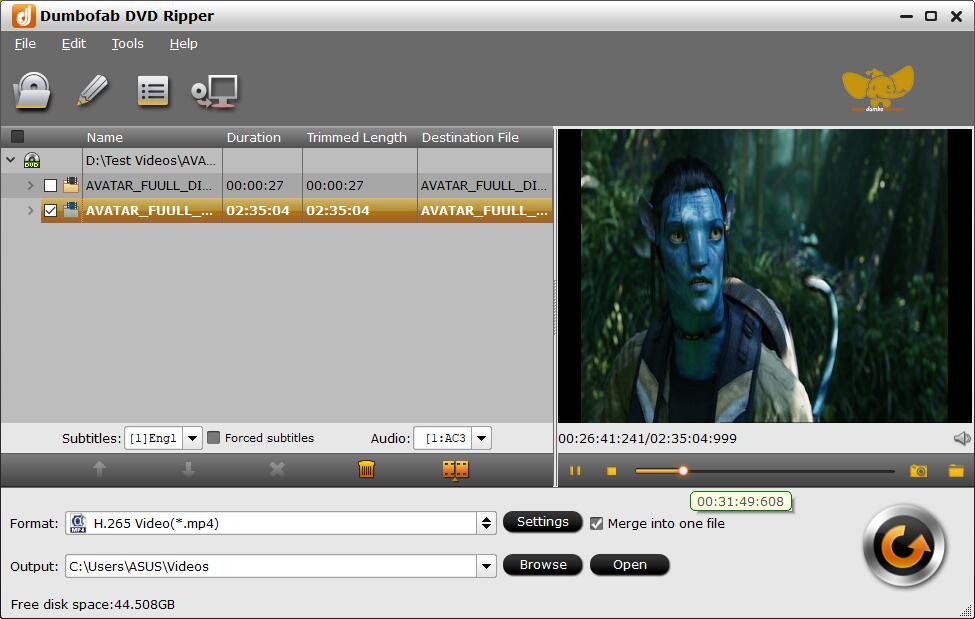
Step 1. Load the DVD you want to upload to cloud.
Input the DVD disc to DVD-ROM. Launch DumboFab DVD Ripper and click the Load DVD button to import the original DVDs you want to put into cloud. It also supports DVD Folder and ISO Image. The DVD ripper supports advanced encryptions like navigation algorithm used in multiple titles. It will easily detect the correct title hiden in DVDs from Disney, Sony, Paramount, etc.
Step 2. Choose a proper output format for cloud storage.
For achiving the result file into cloud, make sure the chosen format is supported by the cloud storage service you use. For general uses, MP4 (h.264+aac)in "Common Video" category is recommended, as it's an universal format supported by almost all cloud storage services and it can maintain the best quality-size balance and maximum compatibility across different platforms.
If you desire to stream and play the ripped DVD movies on Apple TV, iPad, iPhone Samsung table, PS4, Xbox One and any of other portable device, you can choose directly an optimal preset for your device from the correspoding Device category.
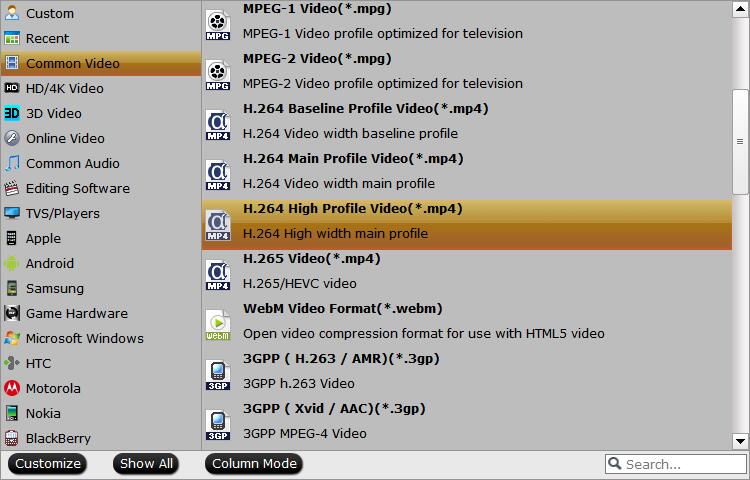
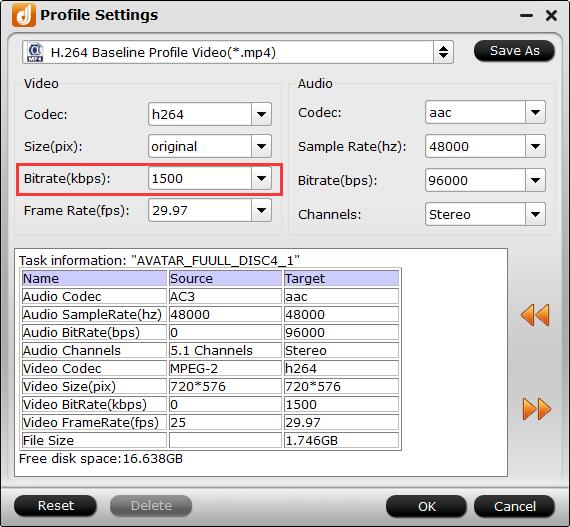
Tips: Flexible options are offered to further reduce the size of the ripped MP4 video. Click the Settings button beside the profile bar and enter into the "Profile Settings" window. A slew of other variables such the video/audio codecs, pixel dimensions, frame rate, bit rate, audio sampel rate, etc. will help convert a DVD at 7.5GB to a smaller MP4 file at 1.0GB-1.4GB.
Recommended video size settings for digitizing DVDs to Cloud:
- ◈ You're not suggested to adjust the frame rate and aspect ratio, if not necessary.
- ◈ Lower the bitrate to a lower level. For example, adjusting the original medium quality to bitrates of around 1500-2000 is acceptable without noticeable pixellation.
- ◈ Lower the resolution. Typical DVD videos are 720×480 (NTSC) and 720×540 (PAL). Adjust the resolution to 640×480 won't make any quality difference.
Note: Adjusting these variables have some effect on the re-encoded video quality. Remember the file size and video quality is based more on bitrate than resolution which means video/audio bitrate higher results in big file size, and lower visible quality loss.
Step 3. Start the DVD to Cloud ripping.
Finally, click the big "Convert" button to start ripping the DVD movie to the digital file accepted by your cloud storage device.
How to Upload Ripped DVD Library to Cloud?
Once the DVDs being converted to digital files, you can then put them on your cloud service, and then stream movies on demand to whatever devices support that service; or you can turn your PC into a media server and effectively host your own "cloud". The steps is straightforward and uploading DVD movies to Google Drive, Dropbox, iCloud, Amazon Cloud, iCloud, Box, etc. is similar.
After the storing DVD movies in the cloud, you can play the files directly online (but the Network speed is a deciding factor), and download them to local disks. Outstandingly, cloud service makes movies, music and photos more portable. Only if you have an online account, you can use the movies on your home PC, work PC and portable PC, stream it to an app, Chromecast, Smart TV, Roku player or a set-top box.
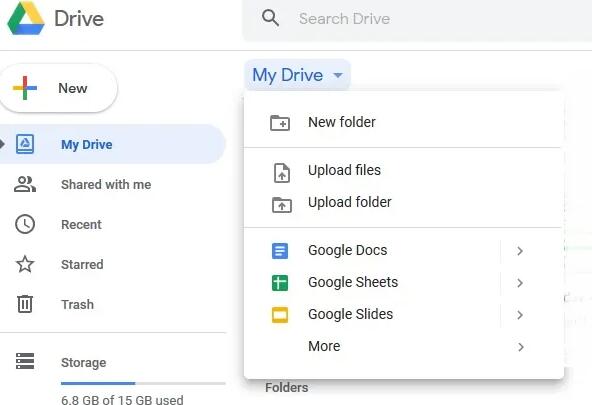
How to upload DVD movies to Google Drive
Step 1. Navigate to drive.google.com and log in your account.
Step 2. Click the + New button and click Upload files or Upload folder if you are going to upload the whole rips.
Step 3. Choose the converted DVD files and click "Open" to upload to the Google Drive. There isn't any daily or monthly upload limit. And the maximum size per file is large and won't pose any problem at all.
How to upload DVD movies to Dropbox
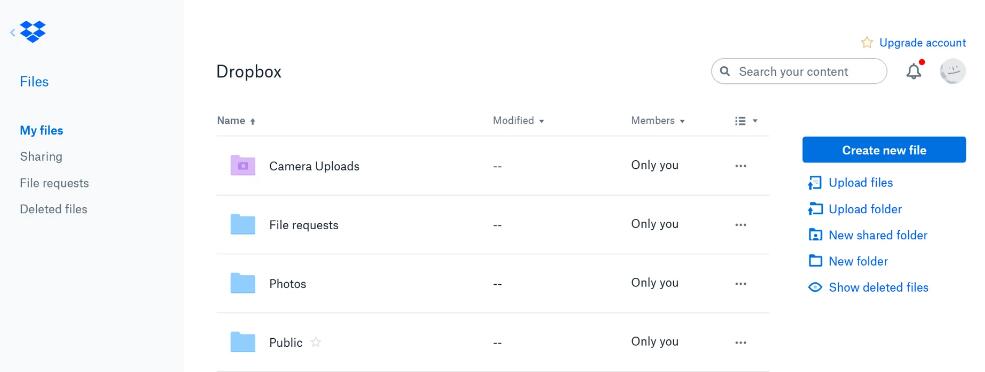
Step 1. Navigate to Dropbox site and log in your account.
Step 2. Click the "Upload files" button. Then you can find a window pop up, click "Choose Files".
Step 3. Choose the converted DVD files and click "Open" to upload to the Dropbox.
Note: The total movie size should be less than 50GB if you upload the movies through your web browser. In another word, you can just upload around 30-40 DVD rips to dropbox.com at a time.
How to upload DVD movies to iCloud
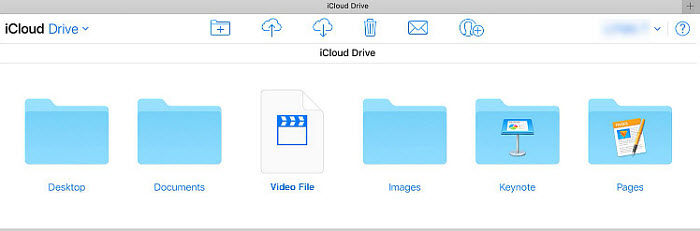
Step 1. Select and open the iCloud Drive app on your Mac or PC.
Step 2. Log in to your iCloud account with your account name and password.
Step 3. Click on the "Photos" icon. Click on the "Upload" button and select the DVD movies you want to upload from your selected folder. Or you can simply drag the ripped DVD movie to iCloud Drive from your Mac or PC desktop.
FAQs
Is it legal to digitize DVD collection for cloud?
For personal backups of DVDs you legally own, the practice is widely tolerated under fair use principles in many jurisdictions. Technically, bypassing CSS encryption violates the DMCA in the United States even for personal use, but prosecutions of individuals for private, non-commercial backups are extremely rare.
The clear legal line is distribution: ripping for personal viewing at home is a different category from sharing or selling the files. Laws vary by country, so check your local copyright rules if you are outside the US.
What's the best format for ripping DVD to cloud?
For the best compatibility, MP4 with AAC or MP3 audio is usually the safest option. While MP4 works almost everywhere, some services also accept formats like MKV, AVI, WebM, or HEVC. If you prefer higher quality or advanced codecs, check your cloud platform's supported formats before ripping your DVDs.
Why we need to convert DVD first for cloud storage?
A DVD usually contains VIDEO_TS folders, VOB files, copy protection, and disc structures that many cloud platforms cannot preview or play properly online. Another common issue is file size. Raw DVD data can take up several gigabytes, making uploads slower and cloud storage space fill up quickly. Converting the DVD into a digital video format like MP4 helps reduce file size while improving compatibility with modern devices and cloud media players.
Is there a free way to transfer purchased DVDs to cloud?
As we mentioned above, you can combine MakeMKV and HandBrake together for a free workflow. First of all, extract MKV files from the store-bought DVDs using MakeMKV, then you can use HandBrake to re-encode the MKV to the MP4 H.264 videos. After that, you can freely port the DVD rips to your cloud storage.