Posted by Chris Ellison - Last Updated: Jul 16, 2026 | Contact Author 
8 Best Ways to Convert DVD to Digital in 2026: Software & Services
Many people still have a large collection of DVD movies. However, physical DVD discs are fragile and easy to damage. For long-term preservation and multi-device playback, converting DVD to digital is a practical solution. Once you turned your DVDs into the widely-supported MP4 files, you can then easily enjoy your movies on a range of devices, not just on computers or TVs. And this way can also help you save local storage space and protect your old or classic DVDs against kids' scratches, disc rot, damages, etc.
To digitize your DVD collection, you'll need "ripping" software to read the physical disc's data and re-encode it into a digital file. If you lack the time to rip DVDs to digital one by one, you can also send your discs to professional services. Below is our complete handpicked list of the top eight solutions, including free software, hardware and retail services. We'll review them and show you how to use them to turn your physical DVD discs into digital files.
Table of Contents
- How We Test the DVD to Digital Converters?
- 6 Best Desktop Software for Converting DVD to Digital
- #1. DumboFab DVD Ripper
- #2. HandBrake
- #3. VLC
- #4. MakeMKV
- #5. MediaCoder
- #6. DVDFab DVD Ripper
- Top 2 DVD to Digital Transfer Services
- #7. Fandango at Home (formerly VUDU)
- #8. Walmart DVD Transfer Service
- Comparison of the Top 8 DVD to Digital Convers
- FAQs
- Conclusion
How We Test the DVD to Digital Converters?
In order to make our best DVD to digital converting software/services list, we evaluated all these methods under the same testing environment, both on a relatively aging computer and a modern computer. Below are the key evaluation metris:
1. Protected DVD ripping ability. Many commercial DVDs use region locks or encryption that prevent standard encoders from reading the data. In order to deal with it properly, it is important to choose "ripping" software that interprets the structure of a disc and supports the decryption of titles.
2. Overall features and interface. We assessed their usability by checking their user interfaces and features, from the most essential MP4 (H.264/HEVC) profile to the general output formats and devices, customization settings, basic editing features, batch processing, output quality, to other value-added features like hardware acceleration support.
3. Experts' and users' reviews. We read reviews written by experts from authoritative media and find out what users are saying about these DVD to digital converters in order to get into their minds, have a better understanding of the products' pros and cons, and then decide the order.
To digitize your DVDs, you can either ship the disc to a transfer service or do it yourself using a DVD ripping software on your computer. The right option is based on your DVD collection, budget, and whether the disc is homemade or protected. Below are some of our suggestions:
- 1. For a ton of store-bought DVDs that have copy protections and users who own a computer and DVD drive, you're recommended to get a dedicated DVD ripping tool like DumboFab DVD Ripper, MakeMKV or DVDFab DVD Ripper.
- 2. For homemade and unprotected DVDs, then the free and open-source tools like HandBrake, VLC are your best choice.
- 3. For a small collection of DVDs and you lack the time to digitize DVDs by yourself, then a retail service like Fandango at Home, DVDWalmart is a good choice.
6 Best Desktop Software for Converting DVD to Digital
This section walks you through 6 top-rated desktop DVD to digital converter software, with introduction, tutorials, pros and cons, to help you find the best fit for your specific needs. Let's dive into the details.
#1. DumboFab DVD Ripper - Convert Protected DVDs to Digital Easily and Quickly
Best for: Fast, high-efficiency DVD to digital conversion and seamless 1:1 backup of heavily encrypted commercial discs.
Compatible OS: Windows 11/7/8/earlier, macOS Tahoe and earlier
DumboFab DVD Ripper tops our list of the best DVD to digital converters due to its powerful DVD decrypting ability, ease of use and fast speed. It features an optimized DVD analysis engine specialized in handling commercial DVDs, slightly damaged discs, region-locked media, and complex copy protection schemes, including Disney 99-Title project, Sony ARccOS, etc . It also utilizes advanced GPU acceleration to rip and transcode DVD, ISO, or folder to up to 500+ modern formats like MP4, HEVC, H.264, AVI, MOV, etc. within minutes while preserving visually high quality.
This top DVD to digital converter also allows users to take granular control over advanced parameters, including resolution, bitrates, frame rates, specific compression codecs, and more. Besides that, users can also use the integrated editing feature to trim non-essential movie lengths, crop black bars, add or hardcode external subtitle tracks. With an intuitive interface, the process is straightforward as 123. All you need to do is: insert the disc, select a target format or device preset, and begin the conversion.
Pros:
- ● Support copy-protected DVD.
- ● Offer lots of output formats and hundreds of presets.
- ● Easy to use and super fast conversion speed.
- ● Provide advanced options for quality adjustment.
- ● Include basic editing features.
Cons:
- ● No Blu-ray support.
- ● Need to download and install this software on your PC.
- ● The free trial only limit 3-minutes outputs.
Steps to digitize DVDs with DumboFab DVD Ripper
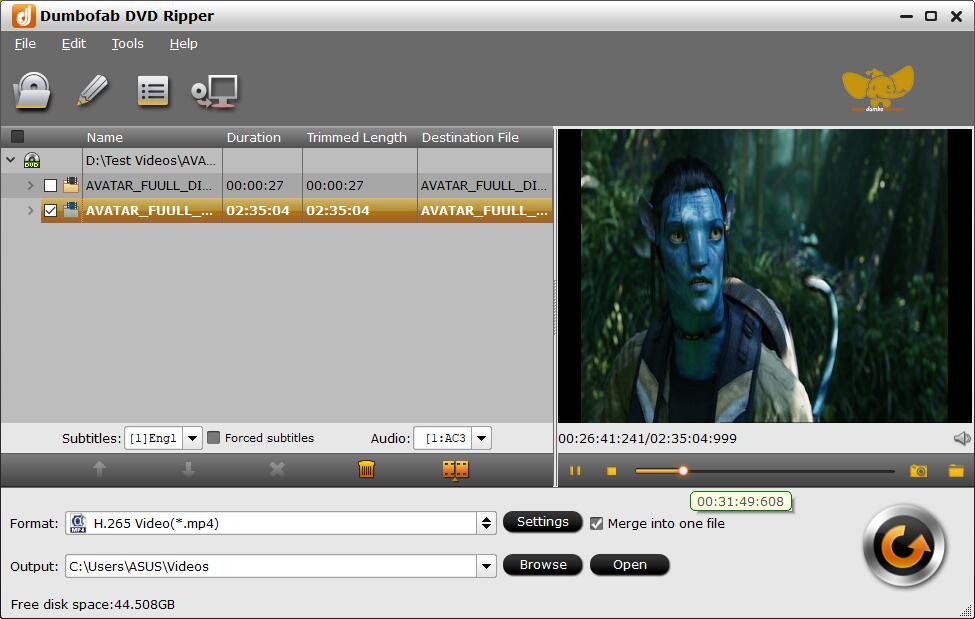
Step 1. Load the source DVD disc.
Launch DumboFab DVD Ripper and hit Load DVD button to import source DVD. A couple of seconds later after loading DVD, all titles will be presented and main title will be selected automatically.
Step 2. Select an output format.
Click Formatbar to select an output digital format. For general playback and storage, H.264 MP4 is a widely compatible choice. You can also choose MKV, AVI, MOV, HEVC, etc. as an output. For playback on a specific phone or tablet, simply pick a ready-made profile optimized for iPhone, Android, Xbox, PlayStation, Smart TV, and more—no manual tweaking needed.
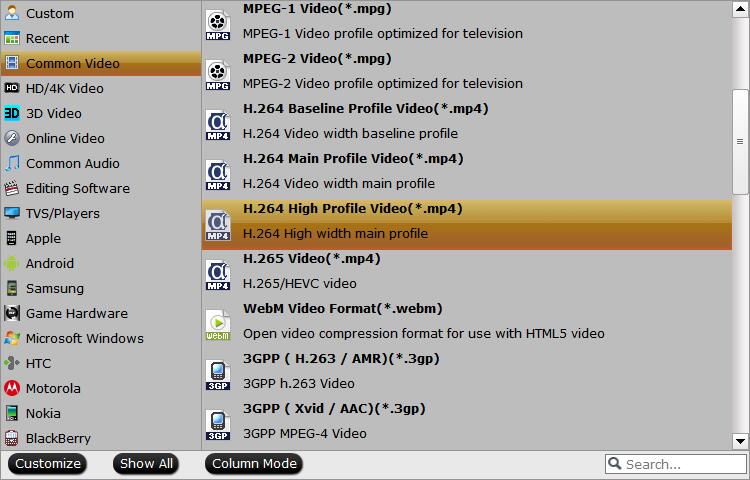
Tips: Before the conversion, you can click Settings button to adjust video and audio parameters for your playback needs. You can also click Edit button to add subtitles, adjust the volume, trim the video to get the favorite clips, crop & expand the video to remove black bars.
Step 3. Start converting DVD to digital
At the final step, hit Convert button to start processing and converting your DVD files to video copy files. The location where you want to save the converted files can be select at the Output.
#2. HandBrake - Freely Convert CSS/Regional DVDs to Digital (libdvdcss)
Best For: Enthusiasts wanting advanced open-source transcoding control without paying a cent.
Compatible OS: Windows, macOS, Linux
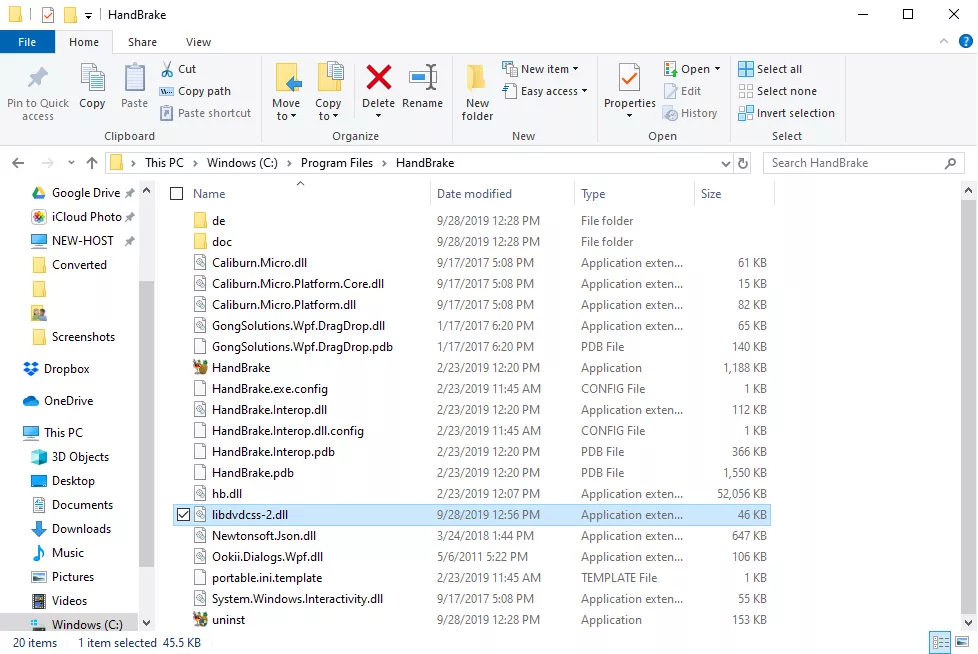
Handbrake is still one of the most widely used free and open-source video and DVD transcoders available around. There is no more DVD decryption feature built-in Handbrake since version 0.9.3. But you can still rip protected DVDs to digital files in MP4, MKV, or WebM format if with VLC libdvdcss installed. By loading the libdvdcss library in the application folder, Handbrake will dynamically read CSS and region-locked DVDs and then re-encode them. But it is futile for Disney and other newly-protected DVDs and Handbrake doesn't allow users to mix multiple DVD titles in one content.
Besides converting DVDs to digital format, Handbrake also provides some presets in the side panel, from General, Web, Matroska to Devices. There are advanced parameters you can tinker with, available for precise encoding settings, effects, parameter adjustment, etc, which, though, are something of a learning curve.
Note: In the latest version, Handbrake updated Intel QSV for better video processing and had many other fixes like issues with subtitle pass-through durations, MP2 audio sources, etc. If you are going to turn a DVD into digital formats using the newer Handbrake version like 1.5.0 or above, please make sure to have Microsoft .NET Desktop runtime 6 or later installed on Windows 10 or later.
Pros:
- ● Free and open source.
- ● Allow creating preset.
- ● Provide many video encoding formats.
- ● Also available to convert Blu-ray sources and regular videos.
Cons:
- ● Require the installation of libdvdcss to handle encrypted DVDs.
- ● Work slowly.
- ● Some settings are too difficult for non-tech-savvy people.
[Tutorial] How to rip DVD to digital free using Handbrake
Step 1. Download, install and open Handbrake on your PC or Mac.
Step 2. Insert the DVD youw ant to convert to digital.
Step 3. Click Open Source to load the DVD movie. Handbrake will take some time to scan the title.
Note that HandBrake can only handle unprotected DVDs on its own. If the DVD, ISO image, or DVD folder is encoded with CSS or region code, please download libdvdcss, a simple library designed for accessing DVDs with CSS decryption. For details, you can follow this guide - "How to rip DVDs with Handbrake" to learn more.
Or else, an error message like "copy-protected sources are not supported", or "no valid source or titles found" will prompt when you try to free convert CSS-encrypted DVD to digital using Handbrake.
Step 4. The main title will be selected for homemade DVDs by default. For protected DVDs, you can find the title via VLC and manually select the right title from the Title dropdown box.
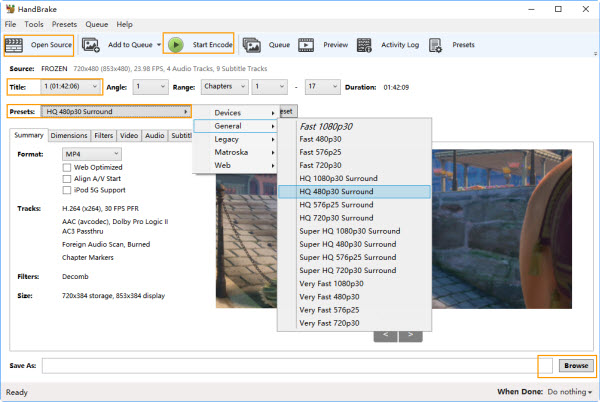
Step 5. Select a preset for your desired output format from "Presets".
Step 6. Adjust video audio settings as needed, such as resolution, codec, and bitrate.
Step 7. Specify save path for the digital copy by clicking on the "Browse" button at the bottom right.
Step 8. Click the "Start Encode" button at the top of the HandBrake window to begin the conversion process.
Step 9. Wait for the conversion process to complete. Once the DVD to digital conversion is finished, you can locate your newly created digital file in the destination folder you specified.
#3. VLC - Transcode Basic Unencrypted DVDs to Basic Digital Files for Free
Best For: Casual users who need an emergency DVD digitizing and are comfortable with a potentially slower conversion speed.
Compatible OS: Windows, macOS, Linux
VLC media player can not only play DVD discs but also proves itself a solid choice with its simplified interface and powerful DVD decoder feature. Can VLC convert DVD to digital file formats? Yes, it offers an easy way to transcode video/DVD to digital copy in MP4 H.264, H.265, WMV, WebM, and more, with no need for extra codec packs.
However, VLC comes with a few trade-offs. VLC just supports ripping CSS and regional discs. You can't decrypt and rip a sophisticatedly-protected DVD with VLC, and you have no control over the conversion - resolution, bitrate, frame rate, deinterlacing, aspect ratio, volume, and more. Despite VLC doesn't offer more conversion profiles like AVI or WMV and it takes as long as the movie length to finish ripping DVD, you can still follow the steps to rip a DVD to digital with VLC.
Pros:
- ● Free of charge.
- ● Provide a dozen of profiles.
- ● Also available to play, convert, and download media.
Cons:
- ● Can't work with some copy-protected DVDs.
- ● Lack video editing features.
- ● No sound/audio issue when playing.
Steps to convert DVD to digital files with VLC
Step 1. Download and install the latest version of VLC media player from the official website.
Step 2. Insert the original DVD into the disc drive.
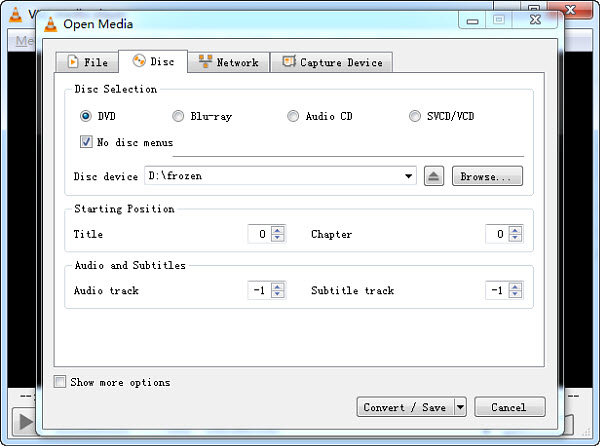
Step 3. Open VLC, and select Convert/Save... under the Media menu in the top left corner of the main interface.
Step 4. Click Disc tab and choose disc device, title, chapter, audio, and subtitle track. Then hit Convert/Save.
Step 5. Choose profile, the output format you want to use. Then click Browse to specify destination file.
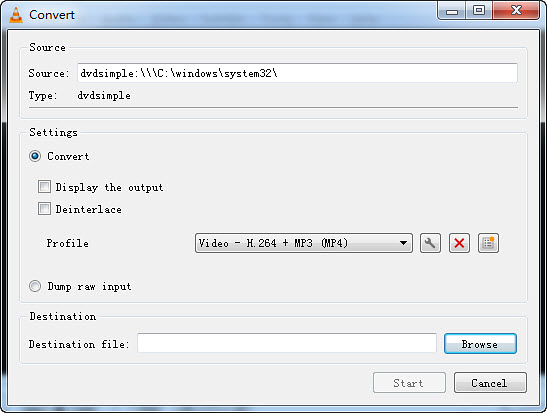
Step 6. Hit Start to use VLC to convert DVD to MP4 or other digital formats.
#4. MakeMKV - Repack DVDs to Digital MKV Losslessly
Best For: DVD collectors who want to preserve every detail of the original disc without re-encoding.
Compatible OS: Windows, macOS, Linux
MakeMKV is a popular DVD and Blu-ray ripping software for Mac, Windows and Linux. But as it names indcates, MakeMKV can only convert DVDs to MKV files, which may not be suitable for users who require other formats. And, there is no customizable settings to reduce the file size or change the video resolution, which means you'll get a high-quality but large-size digital copy.
MakeMKV has a simple and user-friendly interface that is easy to navigate, making it a suitable option for beginners. Below are the simple steps to rewrap a DVD to lossless MKV files with this program.
Pros:
- ● Decrypt DVD on its own.
- ● Preserve most information and quality.
- ● Convert fast.
Cons:
- ● Export files in MKV format only.
- ● Output file size may be too large for you. You need a third-party tool to reduce file size.
- ● Cannot convert DVD directly to more digital formats like MP4 or MOV.
Steps to rip DVDs to lossless MKV with MakeMKV
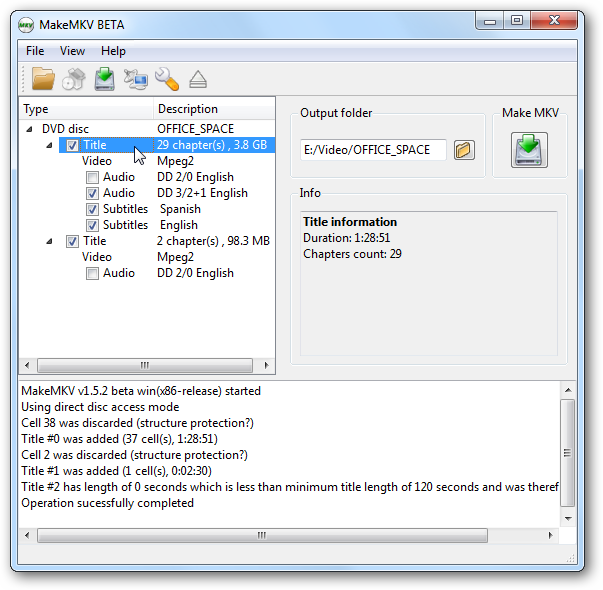
Step 1. Launch MakeMKV and open your DVD disc in it. And it will take a while to scan the disc.
Step 2. When you see a tree structure with your titles, video tracks, audios, and subtitles, just choose which titles or tracks you want to convert.
Step 3. Choose an output folder and ask it to convert the DVD to an MKV file.
#5. MediaCoder - Convert DVD to Digital with Full Control Over Ripping
Best For: those who want highly versatile and customizable DVD to digital ripping and don't mind more complex interface.
Compatible OS: Windows 11, 10, 8.1, 8, 7, Vista
MediaCoder is a free media transcoder that can convert DVD to digital formats like H.264, H.265, VP8/VP9, and more, using QuickSync, NVENC, and CUDA for faster exports. It also features a "Device Mode" with preconfigured profiles for gaming consoles and mobile phones. Users are also allowed to adjust the output settings, like video bitrate, format, rate mode, and more.
However, the software includes advertisements in the free version and the interface is less intuitive. Compared with other DVD to digital converters, the program is quite complicated to get started.
Pros:
- ● Handles ripping from DVD, Blu-ray, VCD, SVCD, and CD.
- ● Allows adjustment of multiple transcoding parameters.
- ● Works with a wide range of video and audio formats.
Cons:
- ● Lack of video editing functions.
- ● The relatively clumsy interface makes it intimidating.
- ● The download page redirects to a third-party software site.
Steps to convert DVD to digital files with MediaCoder
Step 1. Visit the official MediaCoder website to download the latest version. Follow the installation prompts to set up the software on your computer.
Note: In our test, installation was troublesome, and we had to turn to another one for successful downloading.
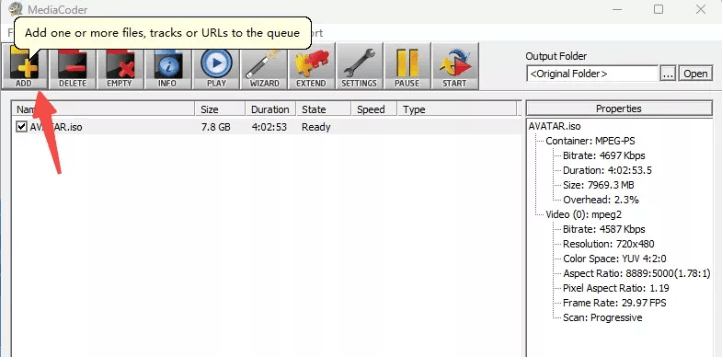
Step 2. Run the DVD to digital converter. Click Add Track from the File menu and select your DVD. Or you can load your ISO image from the Add file button.
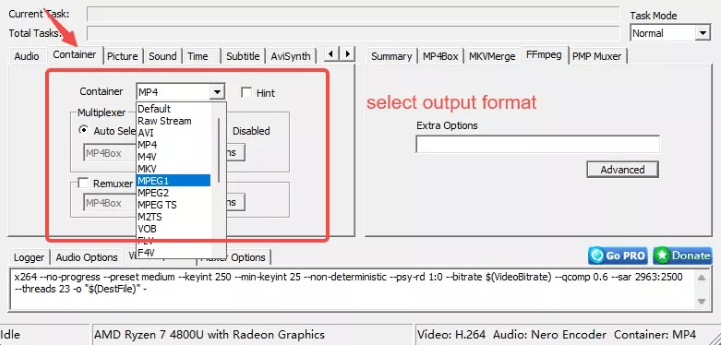
Step 3. In the "Container" panel, choose your desired output format (e.g., MP4, AVI, MP3) from the available options.
Step 4. Configure Settings. Adjust video and audio settings as needed, such as subtitles, sound, and other preferences.
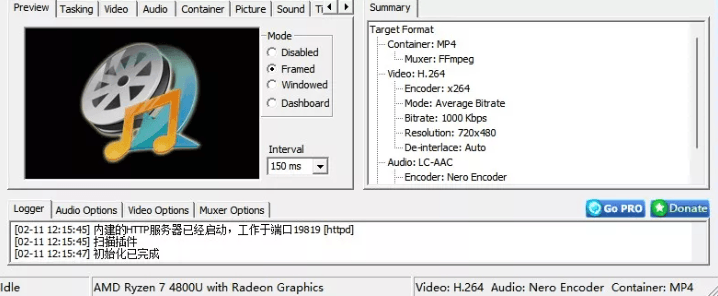
Step 5. Specify the destination folder where the converted files will be saved. Then press "Start" to launch the encode.
#6. DVDFab DVD Ripper - Rip DVD to Digital with a Comprehensive Solution
Best For: Managing large DVD and blu-ray libraries for home media servers.
Compatible OS: Windows 11/10/8.1/8/7, macOS 10.10 or later
DVDFab DVD Ripper is a comprehensive multimedia solution designed for handling a wide range of physical media formats. It supports DVDs, Blu-rays, and UHD discs, along with functions for conversion, backup, and basic authoring. With it, you can rip DVDs to digital MP4, MKV, AVI and 1000+ formats. It will also remove common copy protections on many commercial DVDs, such as CSS, APS, RC, and more. It also includes tools for customizing the output settings, such as video parameters, audio and subtitle track selection, as well as trim and clip functions.
To unlock the real speed (GPU acceleration) and the ability to decrypt the latest Hollywood releases, you must upgrade to the paid version. And the software's interface can be overwhelming for beginners due to its sheer number of modules. Overall, DVDFab is a premium choice for those who want one tool to rule them all, but it may be "overkill" if you only need a simple, fast DVD to digital conversion.
Pros:
- ● Features a reliable Cloud-based Decryption service that supports many mainstream DVD protections.
- ● Large format and device profile library.
- ● Good options for configuring video, audio, and subtitle streams.
Cons:
- ● Sometimes the interface and settings can be overwhelming for the first time user..
- ● The entire software package has a premium price tag compared to single-purpose utilities..
- ● Conversion of DVDs can be intrusive, with occasional product recommendation..
- ● The free version are too basic to use..
Steps to convert DVD to digital for Free with DVDFab DVD Ripper
Step 1. DVDFab DVD Ripper is built into the DVDFab 13 version, so you need to download DVDFab 13 from its official page to access the DVD to digital converter. As it's a comprehensive toolkit, the download and installation may take several minutes.
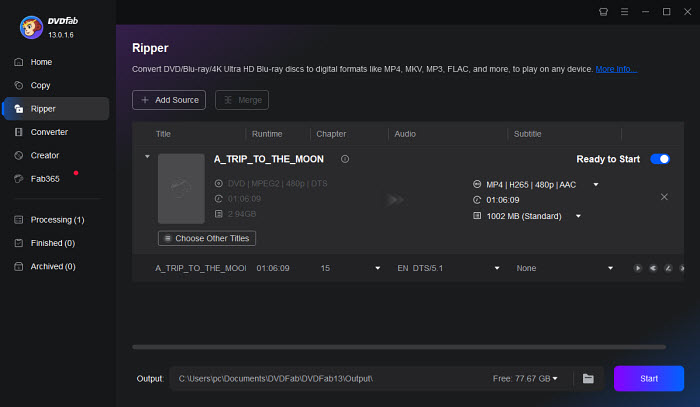
Once downloaded, open it and select Ripper from the left menu. Click Add Source and insert your DVD, it will then load the source DVD in your optical drive.
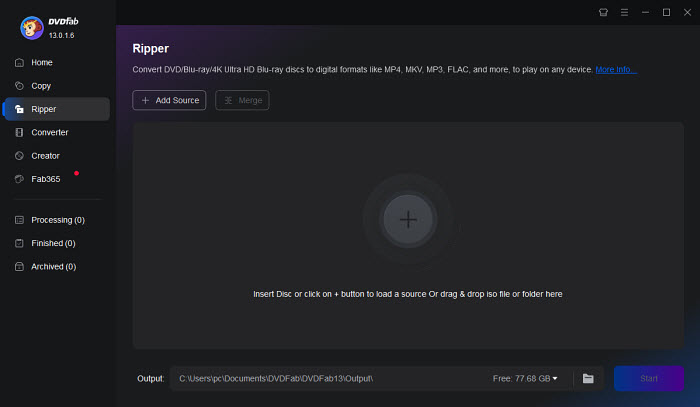
Step 2. On the right of the interface, DVDFab DVD Ripper will choose MP4 as the outputp format by default. You can click on the MP4 format to select another format. The best part is, it will list the output file size of the selected profile.
On the menu bar under the profile, you can also choose the DVD titles that you want to rip, select audio tracks and languages, extract DVD subtitles to SRT format, and add external subtitles.
Note: The free version supports limited output formats like MP4 and MKV.
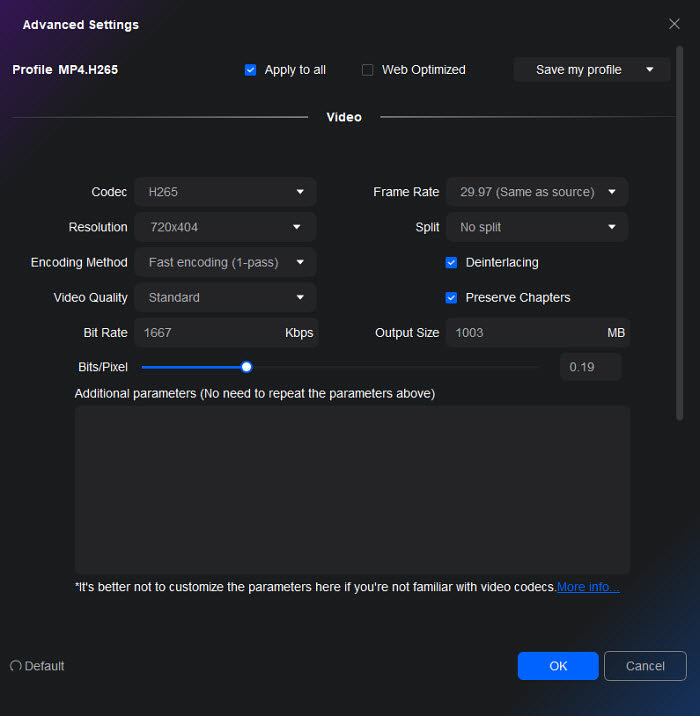
Step 3. Click the Edit button on the menu bar, then you can further customize the DVD to digital MP4 or MKV conversion. You can choose another codec for the output file, such as H.265 or H.264. Also adjust the resolution, bit rate, deinterlacing, output file size, etc. if needed.
Step 4. Choose an output folder on your computer to save the converted MP4 DVD video. Then click Start. It will start the conversion task immediately. If you're using the free version, the conversion will be conducted on the CPU and thus take longer time. It will be a lot faster with the pro version.
Top 2 DVD to Digital Transfer Services
Besides the desktop software, you can also choose national mail-in/drop-off services if you lack the time to digitize DVDs by yourself. Below are the two popular retail services.#7. Fandango at Home (formerly VUDU)
Best For: Users who need to digitize a small collection of DVDs into digital files without the need for a DVD drive.
Compatible OS: Android, iOS
Fandango at Home Disc-to-Digital, Formerly known as Vudu, this app allows you to scan the barcode of your physical DVD using your smartphone camera. For $2, it unlocks a permanent digital streaming copy in Standard Definition (SD) on your account. You can also pay $5 to upgrade the title to High Definition (HDX).
However, Fandango at Home is not budget-friendly for people who have a large DVD collection and imposes limits on conversions per year (restricted to converting 100 DVDs annually). For instance, if you have 500 DVDs to convert, it would amount to $1000 for DVD to SD and $2500 for DVD to HDX, and completing all conversions would take 5 years. Besides these, there are some important notes you need know:
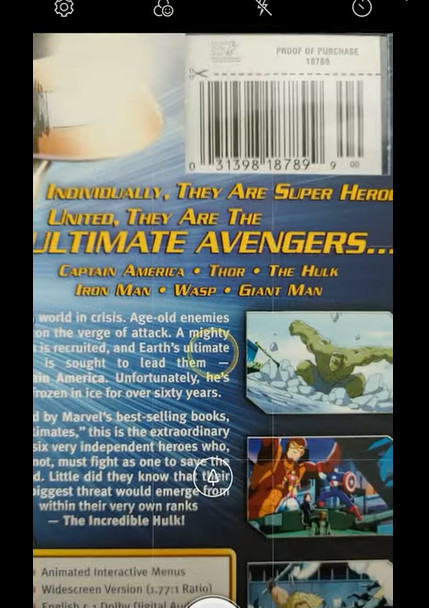
1. You need the case and UPC code to convert with Disc to Digital.
2. You can't digitize Disney, workout, and Home-made DVDs to digital files with VUDU.
3. VUDU provides digital files via the internet connection, which can be capped soon.
4. Sometimes there is SD version available only. You cannot do anything to improve DVD quality.
5. VUDU has region limitations and is exclusively available in the US and Mexico.
Pros:
- ● No need for a DVD drive and a computer.
- ● Offer HDX quality.
- ● Convert DVD to digital right from mobile.
Cons:
- ● Only DVDs from partnering studios are supported.
- ● Expensive for users with large DVD collection.
- ● You lose the movies if you cancel the membership,
Steps to convert DVD to digital on Android/iPhone with VUDU?
Step 1. Visit vudu.com/disc on your Android or iPhone, scroll down and tap the Convert Disc button.
Step 2. Sign up if you don't have an account. And then, sign in.
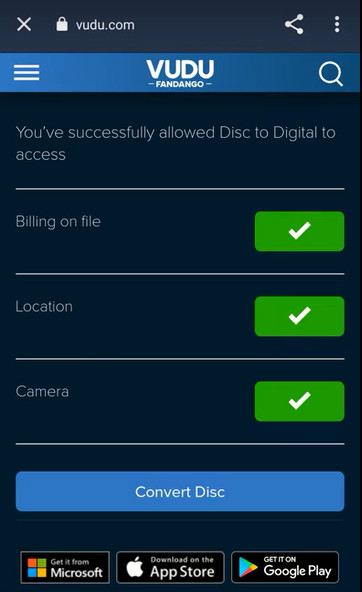
Step 3. Allow app permissions.
Step 4. Scan the UPC barcode on your DVD case.
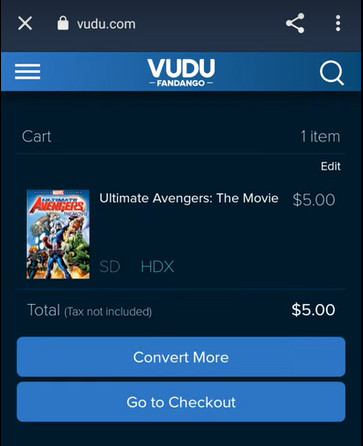
Step 5. Select output quality, SD or HDX.
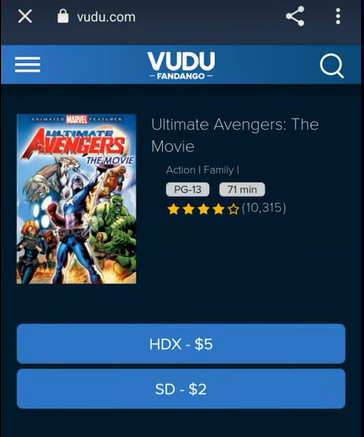
Step 6. Pay for the DVD to digital conversion (DVD to SD: $2 per disc; DVD to HDX: $5 per disc), and then watch instantly.
#8. Walmart DVD Transfer Service
Best For: Individuals with a modest collection of DVDs or other media seeking a hassle-free way to digitize DVDs near me.
Compatible OS: No required
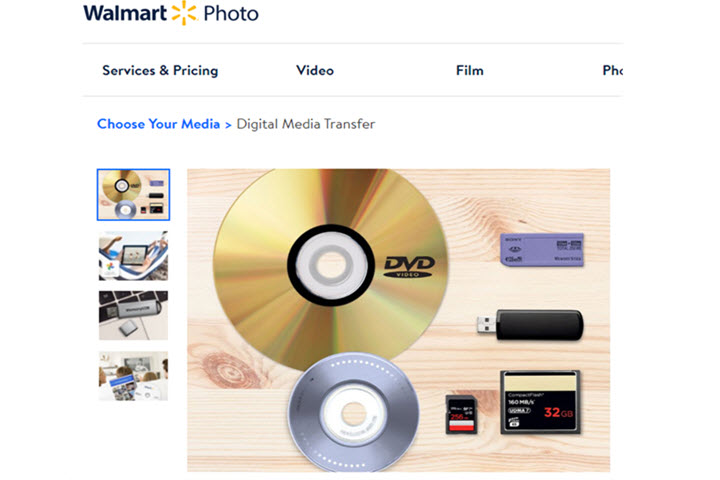
If you are looking for a DVD to digital service near you, you can try Walmart Home Movie and Photo Transfer Service which is powered by Capture, a partner of walmart.com. Its DVD transfer service supports DVD, MiniDVD, YesVideo DVDs, VCD, and CD, and saves the digital content in AVI, MOV, WMV, and MPEG-2 for you to store and back up on Google Photos and hard drives.
Note that it will take 3-4 weeks to transfer your DVD to digital and charges you per disc ($12.96 for the first 30 minutes and $5.46 for each additional 30 minutes). If you have a lot of DVDs that need to be converted to digital format, it will cost a shedload of money. If you're on a budget and want the digital copy in a short time, DVD to digital conversion software will be a better choice. Take DumboFab DVD Ripper as an example, you only need to pay $25.95 to get a one-year license. After activating DumboFab DVD Ripper with this license, you can convert as many DVDs as you like and choose a desired output format. And it only takes a few minutes to get a digital copy of your DVD.
Pros:
- ● No need to download software and computer.
- ● Support multiple media types.
Cons:
- ● Considered relatively expensive for large collections.
- ● Time-consuming due to the recording process for DVD digitization.
- ● Don't support customizing output.
- ● Cannot bypass copy protection mechanisms.
How to use Walmart to transfer DVD to digital copy?
Step 1. Check if there's a Walmart Photo located in your region. Then create an order online.
Step 2. Ship the physical DVD(s) or drop off it at a Walmart near you.
Step 3.. Wait for a month and you'll receive a digital copy.
Comparison of the Top 8 DVD to Digital Convers
To make your selection process easier, we have synthesized the features of these DVD to digital methods into a comparison table. Then you will get a concise overview of what each way offers and choose the best one to convert DVD to digital files.
Software/Service |
Price |
Speed |
Supported DVDs |
Output Formats |
Output Quality |
Quick Edit |
DumboFab DVD Ripper |
Free for 3-min videos. Paid for unlimited use. $25.95 / 1 Year |
Fast. It can rip a 2-hour movie DVD within 5 minutes. |
All DVDs |
420+ output presets, including MP4, MKV, VIDEO_TS folder, MOV, MPEG, FLV, AVI, WMV, MP3, etc. |
SD, original, upscaled |
Yes |
Handbrake |
Free |
It could be tens of minutes to a few hours. |
Limited |
MP4, MKV, WebM |
SD |
No |
VLC |
Free |
It will take the entire runtime of the movie to digitize it. |
Limited |
MP4, MKV, AVI, FLV, WebM, WMV, MP3, TS, etc. |
SD |
No |
MakeMKV |
Free |
Usually about 20 to 30 minutes. |
Limited |
MKV |
Original |
No |
MediaCoder |
Free with limits ($95 for premium version) |
Typically takes 10 to 45 minutes |
DVD, VCD, SVCD, Blu-ray, and Audio CD |
H.264/AVC, H.265/HEVC, MPEG-1/2/4, XviD, DivX, and VP8/VP9 |
Highly customizable, broadcast-grade output quality |
Yes |
DVDFab DVD Ripper |
$59.49 (3 discs free trial) |
Moderate |
Almost all DVDs (Cloud Decryption) |
1000+ video and audio formats |
SD, original, upscaled |
Yes |
VUDU |
$5/disc plus tax |
Fast |
Limited |
MP4 |
SD, HDX |
No |
Walmart DVD Transfer Service |
$12.96 for the first 30 minutes and $5.46 for each additional 30 minutes. |
3-4 weeks. |
Limited |
MP4 |
SD, HDX |
No |
FAQs about Converting DVD to Digital
1. Is converting DVD to digital legal?
Generally speaking, backing up any content with copyright for infringing purposes like commercial redistribution, whether you own it legally or not, is illegal. But when it comes to converting DVD to digital for personal use, things are different from country to country.
- ● United States: According to Title 17 of the United States Code, it is illegal to copy protected DVDs without the consent of the owners. But there is no clear statement for non-commercial use. So if you really need to back up media, convert DVD to digital for personal use only.
- ● United Kingdom: People who own the DVD can legally back up the DVD.
- ● Japan: DVD backup became illegal on October 1, 2012.
- ● German: Circumventing copy protection is illegal, but you are allowed to convert DVDs to digital for personal use.
2. Is it worth converting DVDs to digital?
It definitely makes sense to convert them to a digital format. The greatest advantage of a digital copy is that you can access the content without a DVD player. Moreover, you'll be able to share your files with friends and family or edit them afterwards.
3. Is it possible to rip DVD to digital on Windows or Mac with the built-in apps?
No, there's no default DVD ripping program. Why?
For one thing, DVD copy protections of various kinds sit nearly on all DVDs of movies, TV series, and fitness currently. So it's quite a complicated process to kick them to one side and digitize DVD to digital or other formats on the computer.
For another and also the most decisive thing, decrypting commercial DVDs by circumventing copy protections for profitable usage is prohibited officially by DMCA. As a result, no OS developer would get itself into the DVD ripping stuff.
4. Does Walgreens convert DVDs to digital?
No, Walgreens does not offer a service to convert a pre-recorded, commercial DVD to a digital file. Walgreens' photo service can transfer certain types of home movie media (such as VHS tapes and film reels) to DVD, and provides an option for cloud storage of those home movies through a third-party vendor, iMemories. This service is intended for personal, non-copyrighted content.
5. Does Walmart convert DVDs to digital?
Yes, Walmart offers a service to convert DVDs to digital files, but it is handled through its photo and media transfer service, not the now-defunct in-home Vudu disc-to-digital program. Customers can mail their DVDs in or drop them off at a local Walmart Photo Center for the conversion. The process involves sending your DVDs to a processing center, and the digitized files are returned to you, either as a digital download, on a USB drive, or on a new DVD.
Conclusion
The best DVD to digital converters goes to the open source software undoubtedly. However, they are not competent to either convert copy-protected DVDs or convert files in a fast manner. Taking the most concerning factors into account, the running system, ease of use, supported DVDs, the conversion speed, and the price, DumboFab DVD Ripper is actually the best option for you to convert DVDs to digital formats without any fuss. And don't forget it can do far more than this. Download and unlock more features in DumboFab DVD Ripper now!